AI Video for Online Courses: Openers and Cutaways
Learn how to use AI video for online courses. Create engaging course openers, abstract concept explainers, and b-roll cutaways quickly.
By Qiroq team · Published
You can use AI video for online courses to create polished module openers, abstract visual explainers, and contextual cutaways that break up talking-head lessons. Instead of paying for restrictive stock footage subscriptions or filming expensive b-roll, you describe the specific visual you need in plain text and generate a custom clip in seconds.
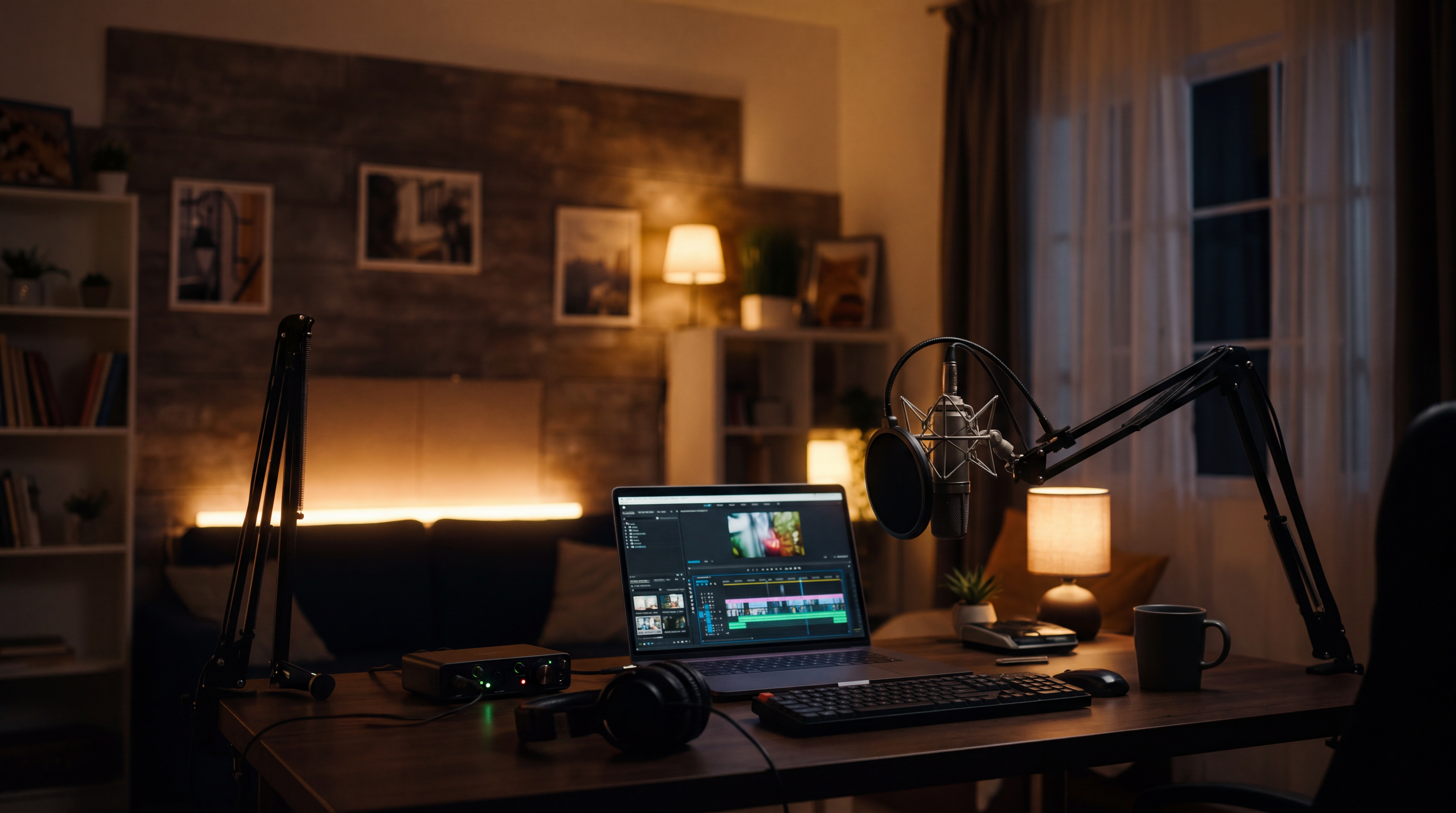
Adding visual variety keeps students engaged and improves retention. Below is a practical guide to planning, prompting, and assembling AI-generated clips for your educational content.
Three Ways to Use AI Video in Your Course Modules
Most course videos fall into a predictable rhythm: an instructor speaking directly to a camera or a screen share with slides. Strategic use of short AI clips elevates production value without complicating your recording setup.
- Module Openers: Short, high-impact atmospheric shots (5, 10 or 15 seconds) that signal a transition into a new topic or module.
- Concept Explainers: Visualizations of abstract ideas, historical scenarios, or physical environments that are difficult to film yourself.
- Cutaways and B-roll: Quick visual breaks placed over your voiceover to maintain audience attention and reinforce key teaching points.
Because Qiroq produces video with matched audio, your cutaways can include natural background soundscapes—like rain on glass, subtle ambient hums, or outdoor nature sounds—that enrich the scene.
Writing Prompts for Course Openers and B-Roll
Successful course visuals rely on clear, descriptive prompts that specify camera motion, lighting, subject matter, and artistic style. Choose one consistent visual style—such as Cinematic, Documentary, or 3D Render—across all clips in a module to keep the aesthetic cohesive.
Prompts for Module Openers
Openers set the tone for what students are about to learn. Keep the camera movement slow and smooth to allow room for title text overlays in your editor.
- Cinematic: "Slow zoom into an ancient wooden library desk filled with open leather-bound books, glowing candlelight, dust motes floating in warm light, cinematic style."
- 3D Render: "A minimalist modern architectural studio room with clean geometric shapes, soft sunlight filtering through floor-to-ceiling windows, smooth panning motion."
Prompts for Visual Cutaways
Cutaways illustrate concepts while you speak in voiceover. Match the visual elements to your lesson topic.
- Science and Tech: "Close-up macro camera movement across glowing circuit boards, blue lighting, soft depth of field, steady lateral motion."
- Business and Finance: "Time-lapse of sunlight moving across a modern high-rise office floor with glass walls overlooking a busy city skyline, bright daytime lighting."
- History and Culture: "Documentary shot of a craftsman hand-stitching vintage leather on a wooden workbench, soft natural side lighting."
If you want to review tested prompt structures before drafting your visual storyboard, check out our guide on AI video prompt examples that work for more practical formulas.
Step-by-Step Workflow for Course Creators
Integrating AI video into your existing lesson creation process requires only a few steps:
- Outline your lesson script: Identify visual gaps where a cutaway or visual anchor will clarify your explanation or prevent viewer fatigue.
- Write text prompts: Draft short visual descriptions for each identified gap, defining subject, lighting, and camera angle.
- Generate your clips: Enter your prompts into an AI video generator with audio and select your visual style.
- Assemble in your video editor: Place the generated clips on your top video track over your main narration audio in your editing program.
- Add text overlays: Insert lower thirds, lesson points, or graphic callouts in your video editor over the generated background clip.
Technical Limits and Best Practices
Understanding what generated video can and cannot do saves time during course production.
First, generated clips are not reliable for displaying exact on-screen text, specific numbers, or exact company logos. If your lesson requires a diagram with precise labels or specific text, build that image in design software and add it as an overlay inside your video editor.
Second, clips are produced in discrete durations of 5, 10 or 15 seconds. You should not try to render a full 10-minute lesson as one continuous scene. Instead, build short visual cutaways to insert at key moments alongside your main presentation footage.
Finally, choose an appropriate output resolution. If your course portal displays full HD content, render your final clips in 1080p resolution. For quick draft previews, lower resolutions allow faster rendering. You can review our guide on 480p, 720p or 1080p selection to select the right fit for your workflow.
Upgrade Your Course Production Quality
Adding custom video clips to your online course does not require costly stock footage accounts or physical camera gear. By describing exact scenes, you produce tailored visual assets aligned directly with your curriculum. Start with a free account on Qiroq to generate your first lesson clips and see how visual variety transforms your course.
Frequently asked questions
- How can I use AI video in my online course modules?
- You can use AI video to create module openers, concept explainers, and cutaways that break up talking-head lessons. Generating custom clips from text prompts adds visual variety to your curriculum without relying on expensive stock footage.
- Can I include specific text or logos in my generated course clips?
- No, generated clips are not reliable for displaying exact on-screen text, specific numbers, or company logos. If your lesson requires precise text or diagrams, build them in design software and add them as overlays in your video editor.
- What video durations can I generate for my course lessons?
- Clips are produced in discrete durations of 5, 10 or 15 seconds. Instead of generating a single continuous lesson, build short visual cutaways to insert at key moments alongside your main presentation footage.
- What resolutions are available for generated course clips?
- Supported resolutions are 480p, 720p and 1080p. If your course portal displays full HD content, render your final clips in higher resolution, while lower resolutions work well for fast draft previews.