AI Video for YouTube Intros and B-Roll: A Guide
Learn how to generate custom YouTube intros and B-roll clips using AI text prompts to create original visual cutaways without stock footage.
By Qiroq team · Published
Using AI video for YouTube intros and B-roll allows creators to quickly generate specific visual cutaways, establishing shots, and title backgrounds without relying on overused stock footage. By typing descriptive prompts into a text-to-video tool, you can produce tailored video clips that match your exact script, tone, and visual style in minutes.
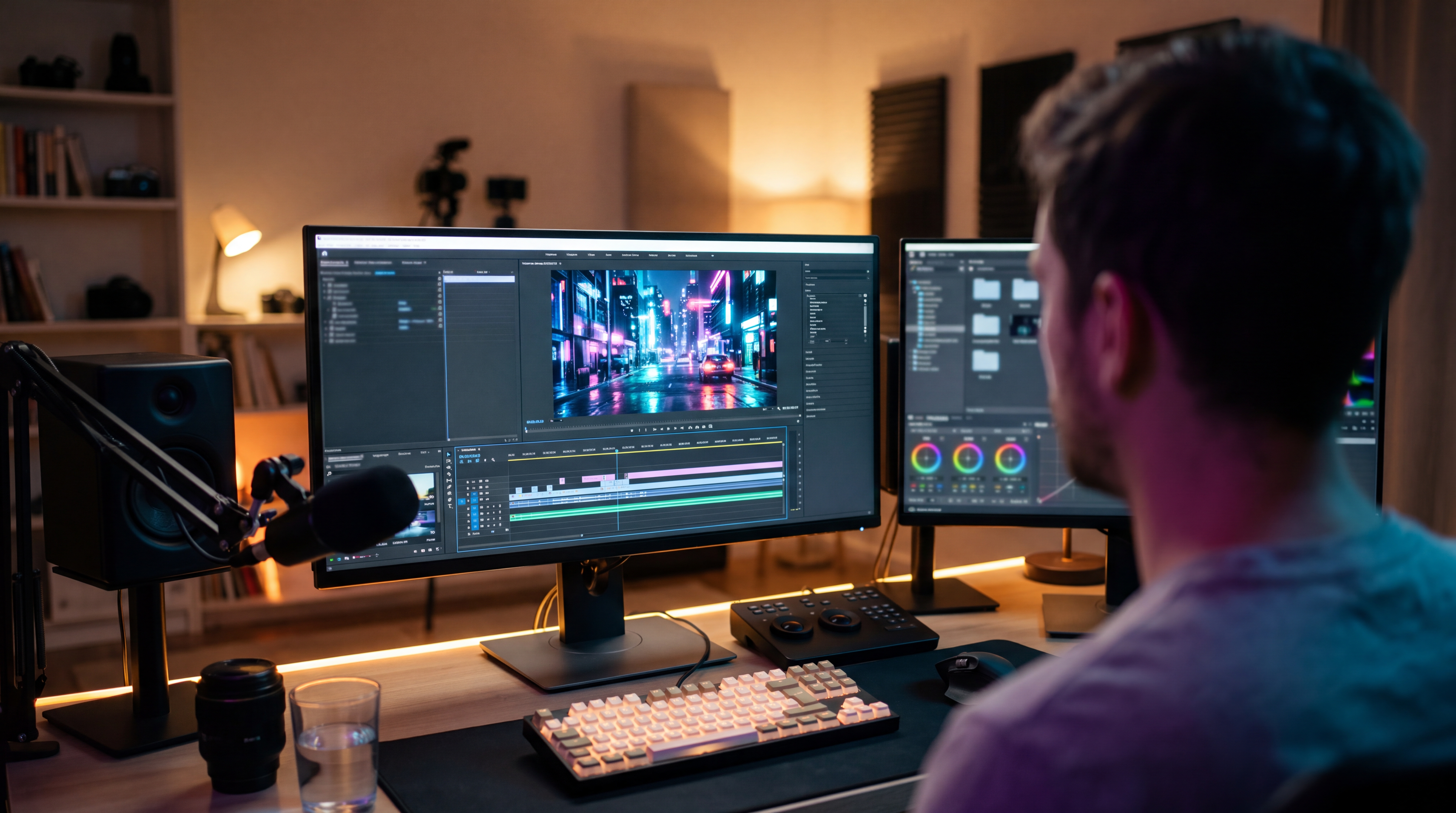
Whether you run an educational channel, a tech review show, or a documentary-style channel, integrating custom AI visuals keeps viewers engaged and helps maintain strong pacing throughout your video.
Why Use AI Video for YouTube Intros and B-Roll?
Standard stock video libraries often suffer from two major problems: everyone uses the same footage, and finding clips that match niche topics can take hours of searching. If your script calls for a specific scene—such as an futuristic server room glowing under cyan light or a slow pan across an ancient desert ruin—finding exact stock footage is difficult.
Using Qiroq to generate B-roll solves these issues by letting you render custom scenes on demand. You gain complete control over lighting, camera motion, and subject matter.
Here are the primary advantages of generating your own B-roll:
- Unique Visuals: Your channel gets original footage that competitors cannot download from standard stock websites.
- Contextual Accuracy: Match scenes precisely to what you are speaking about in your voiceover.
- Multiple Visual Styles: Render clips in Cinematic, Documentary, Anime, 3D Render, Vlog, or Product styles to suit your video's aesthetic.
- No Camera Setup Required: Create complex location shots, macro close-ups, or abstract visuals without buying extra gear.
How to Craft High-Impact YouTube Intros
Your YouTube intro sets the mood and hooks the viewer within the first five seconds. A strong intro typically combines a high-energy visual hook, atmospheric background footage, or a stylized title card.
To build an effective YouTube intro using AI video, follow these steps:
- Define the Mood: Decide whether your video calls for dramatic lighting, vibrant animation, or a grounded vlog atmosphere.
- Generate an Establishing Shot: Prompt a 5-second or 10-second scene that introduces your topic visually. For example, a tech video might start with a dramatic dolly shot toward a glowing microchip.
- Keep Motion Intentional: Use slow camera moves like pan, tilt, or zoom to create motion without overwhelming title overlays.
- Layer Your Branding: Bring the rendered clip into your editor to add your channel logo and music track.
When generating intros, selecting styles like Cinematic or 3D Render often provides the polished look needed for professional intros. If you want to learn more about setting up your prompt structure, read our guide on how to write video prompts.
Generating Contextual B-Roll for Your Main Timeline
B-roll clips are used to break up long talking-head footage, illustrate complex concepts, and maintain high viewer retention. When generating B-roll for YouTube, short 5-second to 10-second cutaways usually work best.
Here is how to plan and generate B-roll clips efficiently for your script:
Highlight Script Gaps
Read through your voiceover script and mark sections where the viewer experiences more than five seconds of static talking-head footage. Note down the specific noun or concept mentioned at that moment.
Write Action-Oriented Prompts
Instead of static subject descriptions, describe movement and lighting. Specify the camera distance and lighting conditions to get realistic results.
- *Weak prompt:* A coffee cup on a table.
- *Strong prompt:* Cinematic close-up shot of steam rising from a dark ceramic coffee cup on a rain-slicked wooden table, soft morning window light.
Match the Aspect Ratio and Style
Ensure all generated clips use a consistent visual style throughout your editing timeline. Switching rapidly between photorealistic shots and stylized 3D renders can pull viewers out of the experience.
Technical Options: Resolutions and Lengths
When preparing footage for a full-length YouTube video, choosing the right output settings helps balance rendering efficiency and visual crispness.
Qiroq supports video lengths of 5, 10 or 15 seconds across 480p, 720p and 1080p resolutions. Here is how to pick the right settings for your workflow:
- 480p: Ideal for quick prompt testing and framing ideas. A 5-second clip costs 30 credits, while a 10-second clip costs 50 credits.
- 720p: Great for web previews or background layers. A 10-second clip costs 10 credits.
- 1080p: Recommended for final YouTube edits. High-definition rendering ensures crisp visuals on high-resolution displays. A 5-second 1080p clip costs 100 credits, a 10-second clip costs 200 credits, and a 15-second clip costs 320 credits.
For a detailed breakdown of quality differences and export recommendations, consult our guide on which resolution you should generate.
Common AI Video Limitations to Keep in Mind
While AI video generators excel at establishing shots, motion backgrounds, and visual cutaways, understanding current platform limits prevents wasted renders:
- Avoid Exact Text: AI engines are not designed to render precise on-screen text, brand logos, or legible typography inside the video scene. Add text overlays using your main video editor instead.
- Avoid Long Dialogue Scenes: AI video generation works best for atmospheric B-roll and action cutaways rather than extended lip-synced talking heads.
- Keep Prompt Focus Simple: Describe one main subject and one clear camera motion per render to achieve consistent output quality.
By creating a dedicated folder of custom AI B-roll clips for each project, you can produce polished YouTube videos that capture viewer attention from the opening intro to the end screen.
Frequently asked questions
- What visual styles can I select for YouTube B-roll?
- You can generate clips in Cinematic, Documentary, Anime, 3D Render, Vlog and Product styles to match your channel aesthetic. Selecting options like Cinematic or 3D Render provides a polished look for intros, while consistent styles keep viewer retention high.
- Which video resolution is best for YouTube edits?
- 1080p is recommended for final YouTube edits to ensure crisp visuals on high-definition displays. Creators can also use 480p or 720p for quick framing tests and background previews.
- Can I generate text or logos directly inside the AI video?
- AI video generation is not designed to render precise on-screen text, brand logos, or legible typography inside the scene. You should layer text overlays, channel logos, and music using your video editor after rendering.
- How long can generated B-roll clips be?
- In Qiroq, generated video clips can be 5, 10 or 15 seconds long across 480p, 720p and 1080p resolutions. Short cutaway clips usually work best for illustrating concepts without breaking video pacing.