Camera Movement Prompts for AI Video Explained With Examples
Master camera movement prompts in AI video. Learn how terms like pan, tilt, zoom, track, and orbit change your clips with ready-to-use prompt examples.
By Qiroq team · Published
Controlling camera movement in AI video prompts is the fastest way to turn a generic generated clip into a cinematic sequence. By adding specific movement terms—such as push in, pan right, tracking shot, or slow orbit—to your text prompt, you guide how the virtual lens navigates your scene. Without movement cues, AI generators often default to subtle subject motion or random camera drifts.
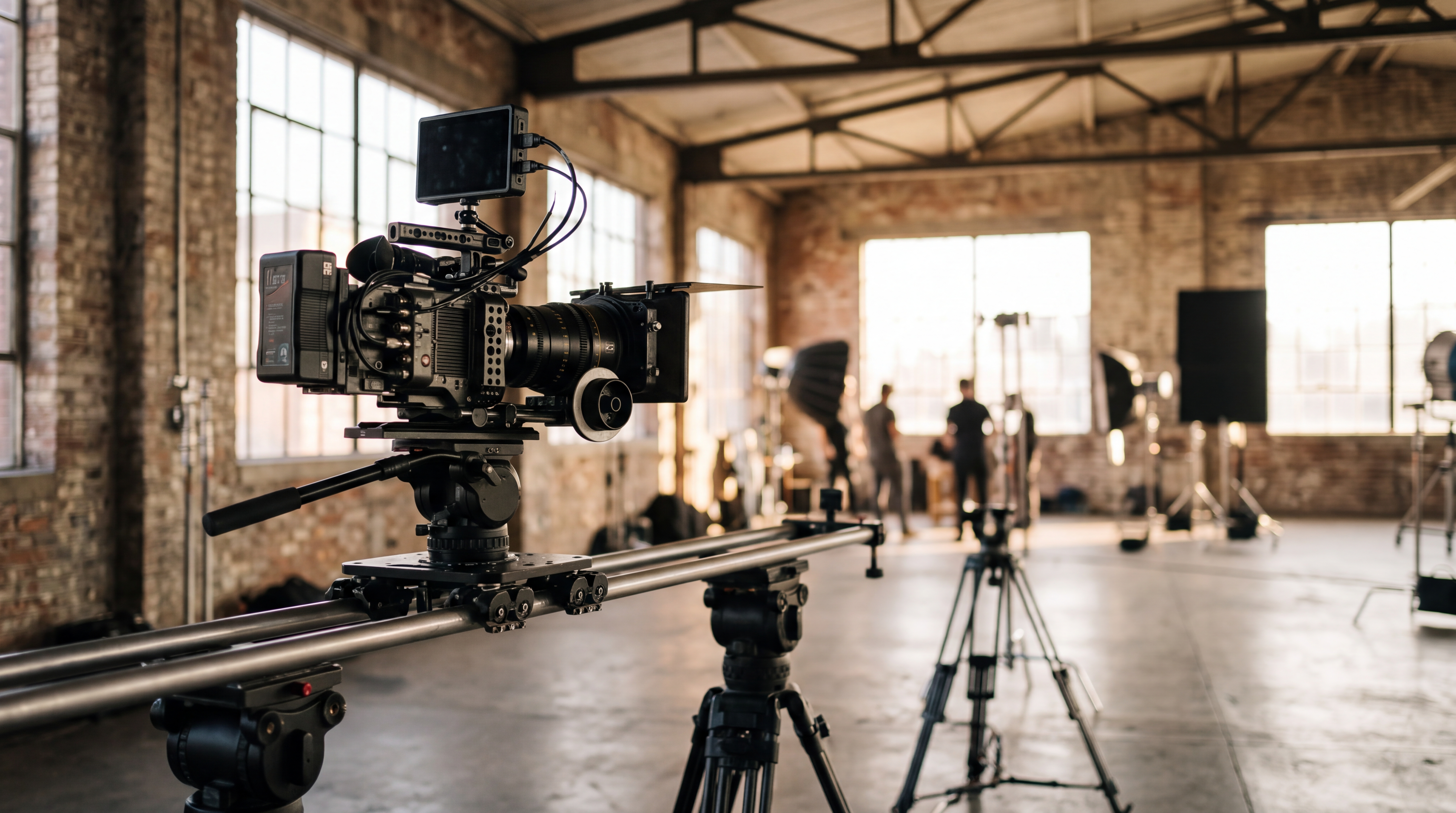
When using Qiroq to convert text descriptions into high-definition video, explicit camera instructions give you predictable framing across every frame. Whether you are generating a 5-second product teaser or a 15-second visual hook, specifying camera direction keeps your visual narrative clear and professional.
Essential Camera Movement Words and Prompt Examples
Filmmaking vocabulary translates cleanly into AI prompt instructions. Here are the core camera movements every creator should master, along with prompt structures that produce reliable results.
Pan and Tilt (Swiveling the Lens)
A pan rotates the camera horizontally on a fixed point (left or right), while a tilt angles the camera vertically (up or down). Pans are ideal for scanning wide landscapes, while tilts create dramatic reveals from ground level to skyline.
- Slow pan right across a misty pine forest at sunrise, cinematic lighting, calm atmosphere
- Camera tilts up from leather boots to reveal a runner standing at the starting line, stadium lights overhead
- Slow pan left showing a busy modern office interior, soft natural morning light through floor-to-ceiling windows
Push In, Pull Back, and Zoom (Depth Motion)
A push in (or dolly in) physically moves the camera closer to the subject, building emotional intimacy or focus. A pull back recedes from the subject, revealing the surrounding environment. While traditional camera zooms alter focal length, prompting 'slow push in' usually generates a smoother, three-dimensional motion in AI video platforms.
- Slow push in on a vintage espresso machine pulling a dark shot into a glass cup, steam rising, product shot
- Camera pulls back from a solo hiker standing on a cliff edge to reveal a massive canyon landscape at golden hour
- Dramatic fast push in on an antique compass resting on a worn leather map, detailed textures
Tracking and Trucking Shots (Following Motion)
A tracking shot (or dolly shot) moves along with a moving subject, matching its pace. Trucking refers to lateral movement parallel to a moving target. In text-to-video creation, tracking shots keep your hero subject centered while the background glides past smoothly.
- Side tracking shot following a runner jogging through city streets at twilight, neon reflections on wet asphalt
- Low-angle tracking shot following a golden retriever running through tall grass in a sunny field
- Camera trucks left alongside a classic red convertible driving down a coastal highway, ocean view behind
Orbit and Arching Shots (360 and Semi-Circle Motion)
An orbit shot rotates around a central subject while keeping it focused in the middle of the frame. This dynamic motion works exceptionally well for physical products, characters, and 3D environment showcases.
- Slow smooth orbit around a sleek wireless headphone resting on a dark marble pedestal, accent lighting
- Camera arches 180 degrees around a chef plating a dish in a high-end restaurant kitchen, warm overhead spotlight
- 360-degree orbit around a futuristic sci-fi helmet floating in mid-air, neon glowing accents, 3D Render style
Pedestal, Crane, and Drone Shots (Vertical Elevation)
Pedestal shots move the entire camera body straight up or down without tilting the lens. Crane and drone shots combine elevation with forward motion for sweeping establishing shots.
- Pedestal down from a sunlit canopy to a wooden bench in a quiet public park
- High-altitude drone shot gliding forward over a dramatic coastal cliffline as waves crash below
- Low-angle crane shot rising above an outdoor music festival crowd as stage lighting flashes
Combining Subject Motion with Camera Movement
The best AI prompts separate what the subject is doing from what the camera is doing. Stacking unrelated movements causes visual confusion for the AI model. For instance, prompting 'a person running fast while the camera pans wildly and zooms in quickly' often results in distorted frames.
Instead, pair complementary movements. Match a forward-moving camera with a forward-moving subject, or pair a static subject with a slow orbit. For detailed guidance on structuring full prompt text, read our guide on how to write video prompts.
Camera Movement Prompts for Specific Use Cases
Different visual goals require tailored camera behaviors. Below are practical prompt templates ready to use in your video workflows.
Short-Form Content Hooks
For high-retention social content like TikToks or clips for an AI video generator for YouTube Shorts, fast directional motion captures attention in the first second.
- Fast push in on an unboxing knife slicing through a glossy black package seal, studio macro lighting
- Dynamic low-angle tracking shot following a skateboarder carving down a concrete ramp, sunset sky
- Rapid zoom out from a close-up of sizzling coffee beans revealing a busy cafe interior
E-commerce and Product Displays
Product videos benefit from controlled, smooth motions that highlight textures and design details without jarring speed changes.
- Slow horizontal tracking shot across luxury skincare bottles arranged on a damp stone surface, soft focus background
- 180-degree smooth orbit around a leather handbag resting on a minimalist wooden display stand
- Gentle push in on a mechanical watch face, movement of internal gears visible, macro lighting
Common Mistakes to Avoid
While text-to-video AI handles camera movement well, steering the camera requires avoiding a few common pitfalls:
- Overloading camera verbs: Avoid putting pan, tilt, zoom, and roll in a single phrase. Pick one primary motion per clip.
- Contradictory vectors: Asking the camera to pull back while asking the subject to approach camera rapidly can create visual artifacting.
- Ignoring speed descriptors: Terms like slow, gentle, rapid, or cinematic glide set the motion pacing. Without them, movement speed can be unpredictable.
- Expecting text or logo tracking: Remember that generated video is not good at exact on-screen text, logos, or long continuous multi-scene choreography within a single clip. Keep scenes focused on visual atmosphere and spatial movement.
Getting Started with Camera Prompts
Understanding camera movement allows you to control pacing, mood, and visual framing across your project. By combining descriptive scene detail with precise motion keywords, you can consistently produce polished video clips across available resolutions.
You can start testing camera movements today. Sign up for a free account at /signup to get 500 free credits with no credit card needed, and experiment with pans, tracking shots, and orbits across cinematic and product visual styles.
Frequently asked questions
- How do I control camera movement in an AI video prompt?
- You control camera movement by adding explicit terms like push in, pan right, tracking shot, or slow orbit directly to your text prompt. Specifying camera direction keeps visual narrative clear and helps prevent unpredictable camera drifts.
- What mistakes should I avoid when prompting AI camera movements?
- Avoid overloading multiple camera verbs like pan and tilt in a single phrase, combining contradictory movement vectors, and omitting speed descriptors. Focus on one primary camera motion per clip to maintain visual clarity.
- How many credits do I get for signing up for a free account?
- When you sign up for a free account at /signup, you get 500 free credits with no credit card required. These credits never expire and remain on your account until you use them.
- What video lengths and styles does Qiroq support?
- Qiroq supports video lengths of 5, 10 or 15 seconds across resolutions of 480p, 720p and 1080p. Available visual styles include Cinematic, Documentary, Anime, 3D Render, Vlog and Product.